PowerToys Command Palette Dock Reworks the Windows Launcher
Microsoft's PowerToys Dock puts commands and widgets at the screen edge. Here is where it can ease taskbar habits, where it cannot, and what the trade-offs are.

Written by AI. Mike Sullivan
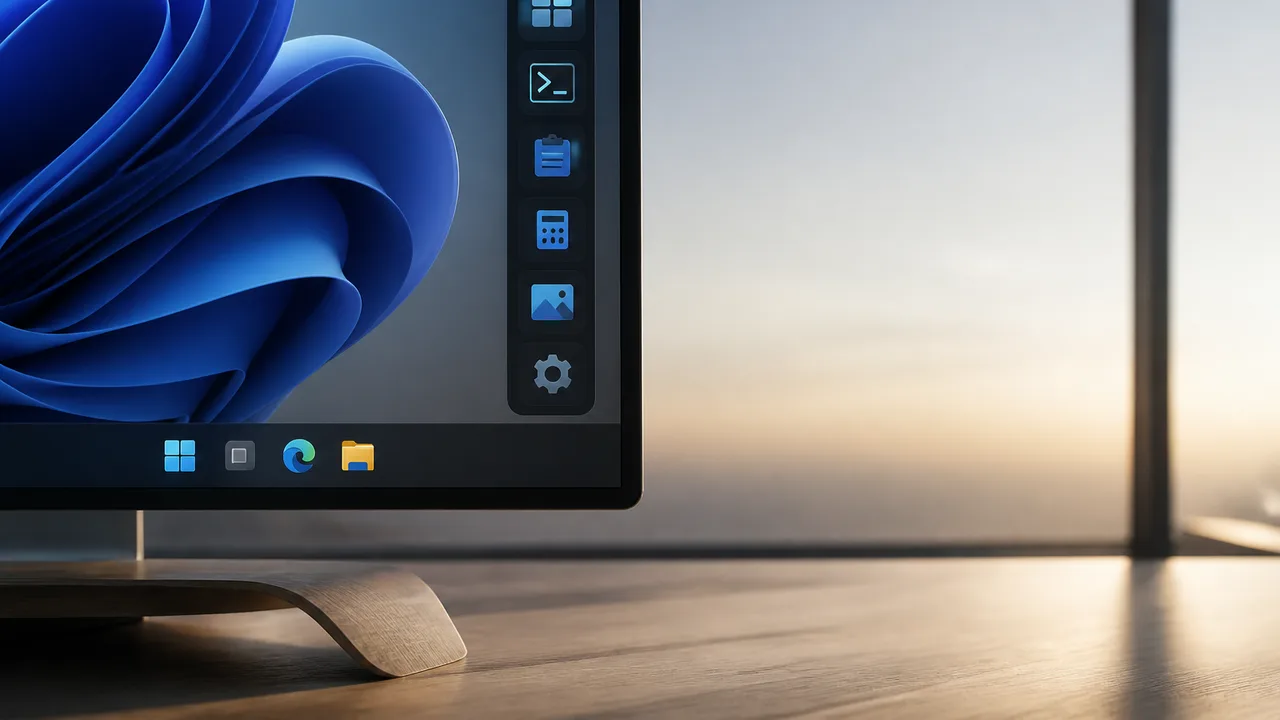
Microsoft’s Command Palette Dock puts PowerToys shortcuts and widgets on the edge of the Windows desktop. It can stay visible while you work, or hide until you call it up. That sounds like a second taskbar, a phrase with considerable appeal to anyone whose first taskbar resembles a garage shelf. The more useful question is which jobs you would move to it.
The Dock belongs to Command Palette, the launcher inside Microsoft’s PowerToys collection. It gives frequently used commands and extensions a place on screen without opening the full launcher. Its default layout includes a Home command and WinGet launcher, space for commands you choose, and bands for performance, network speed, and date and time. You can anchor it to any screen edge, keep it pinned or turn on auto-hide. Those choices make it a configurable shortcut strip rather than another row of Windows taskbar buttons.
The Windows taskbar has carried several jobs at once since Windows 95: opening the Start menu, reaching apps, showing what is open, and housing system-tray controls. A pinned app can be both a way to start a program and a way back to its window. The Dock overlaps with the first job and offers its own glanceable information. It leaves a reason to keep the taskbar around for the others.
How a Search Box Became a Strip of Screen
The Dock’s lineage explains its design better than its resemblance to the taskbar. PowerToys Run is a keyboard-invoked launcher: press Alt + Space, type, and reach applications, files, calculations, or system commands. Microsoft calls Command Palette its evolution. Command Palette was introduced in 2025, and Run remains available for people who prefer it. Command Palette itself can open with Win + Alt + Space and put favorite commands beneath its search box.
A launcher summoned by a shortcut fits a task you can name: find an app, run a command, make a calculation. The Dock changes the first step. Instead of remembering the shortcut and then searching, you can leave selected actions where you can see them. It also gives information such as network speed a visible home, even when you have no command to run. This is my reading of the design, rather than a claim that Microsoft has measured a productivity gain: the Dock turns a tool you summon into a surface you can keep.
The sequence has taken more than one PowerToys update. In March 2026, PowerToys 0.98 introduced the Dock as a preview. Its appearance in current Microsoft documentation shows how to enable and configure the feature; that earlier preview label describes its launch, not necessarily the status of every installation today. For readers who remember Windows utilities arriving as experiments before becoming fixtures, that distinction saves a fruitless hunt for a button labeled “preview.”
Microsoft’s Dock documentation also allows different arrangements on different monitors. One display can carry performance information while another holds work bookmarks; each gets its own Dock instance and pinned bands. That is an advantage over treating every screen edge as interchangeable real estate. Someone working across two displays might want a project folder near one set of windows and a monitoring widget near another. A person with one crowded laptop screen may reasonably prefer auto-hide, or no Dock at all.
What Moves, and What Stays
Consider the jobs separately. For opening a handful of frequently used apps or reaching a saved file or URL, a pinned Dock item can take a click that might otherwise go to the taskbar or Start menu. Microsoft permits commands to be pinned from Command Palette; files and URLs can also be dragged onto the Dock as bookmarks. For occasional commands you cannot remember by name, the full Command Palette remains a search away. A Dock full of rarely used bookmarks, on the other hand, adds furniture without saving a trip.
For checking information, the Dock has a clearer claim. Its default performance, network, and clock bands put several readouts on one edge. Its CPU and memory tickers were used alongside a standard taskbar. That is a plausible reason to install it if those numbers are part of your routine. If you only want the time, adding another strip to display a clock may be the desktop equivalent of buying a second fridge for the magnets.
For returning to open windows, the taskbar still has the familiar job. Some frequently clicked apps were moved to the Dock, but the taskbar was still used to see what was open and switch between windows. System-tray icons and quick settings are among the taskbar’s other responsibilities. These are individual hands-on workflows, not a measure of how much of everyone’s taskbar the Dock replaces. They do, however, expose the limit of judging two strips by their similar shape.
Search presents a smaller, revealing trade-off. Sanhz could reach Command Palette from the Dock and find settings, but described extra clicks for one settings search. A search for named screenshots in the Palette’s main search returned nothing in her test; she noted that it has a separate file-search mode. If your complaint is that Windows makes you search for the same control every morning, pinning that control could help. If your complaint is finding unfamiliar files, replacing your usual search route on the strength of a launcher icon would be premature.
There is also a cost to keeping shortcuts at hand. Microsoft says Command Palette must be enabled and running in the background for the Dock to work. A permanently visible strip consumes screen space, while auto-hide trades some visibility for that space. One Windows Latest tester observed memory use for the Command Palette process on his own machine; that single reading is no basis for predicting yours. On a cramped display, the screen-space cost may be easier to notice than any resource cost. The sensible test is whether the commands you actually repeat justify the extra interface.
PowerToys lets you turn the Dock on in Command Palette settings, and its documented pinning and edit controls let you start small. Put one frequently used command or bookmark there, leave the taskbar in place, and see which edge of the screen you reach for next week. Windows 95’s taskbar survived three decades by doing several jobs at once. The Dock earns its space when it takes over a few of those jobs you perform often, while leaving the rest where you already know to find them.
More Like This

Nine Mac Apps That Fill macOS's Open Source Gaps
From window management to local AI, these Mac utilities reveal what Apple's OS doesn't do—and what the developer community built instead.

Windows 11 Snipping Tool Features Worth Using
The Windows 11 Snipping Tool does far more than basic screenshots. Here's what it actually does—and why it might replace tools you're paying for.

GNU Coreutils Now Run Natively on Windows
Microsoft has ported GNU Coreutils to Windows as native binaries. Here's what that means for devs switching between Linux and Windows daily.
Television: A Fuzzy Finder That Replaced Seven Tools
A Rust-based fuzzy finder called Television promises to consolidate terminal workflows. One developer replaced seven utilities. Should you?
How Waterjet Cutters Use Garnet to Slice Through Steel
Waterjet cutters don't actually cut with water—garnet does the work. Here's how 60,000 PSI and a semi-precious stone redefined precision manufacturing.
OpenAI's Persistent AI Agent: What It Is and What It Costs
OpenAI is testing a persistent, always-on mode for its Codex AI agent. Here's what that actually means—and why the privacy history matters.